
 COMPLETE GUIDE
Ervy Robotic Documentation
Everything you need to build, deploy, and earn with your robotic arm
Introduction
Welcome to the Ervy Robotic documentation. This comprehensive guide will walk you through every step of building, deploying, and monetizing your own robotic arm as part of our decentralized Robotics-as-a-Service (RaaS) network.
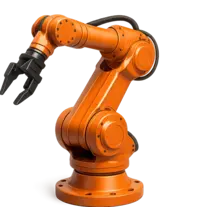
What is Ervy Robotic?
Ervy Robotic builds the future of distributed robotics. We're launching a global network where 3D-printed robotic arms become autonomous service nodes, creating earning opportunities for builders and access for users worldwide through blockchain technology.
Our platform enables makers, hobbyists, and enterprises to participate in a shared robotics economy where every robotic arm contributes to and benefits from a growing decentralized network.
Key Features

100% Open Source
All designs, firmware, and control software freely available

Decentralized Network
Peer-to-peer marketplace for robotic capabilities

Blockchain-Powered
Smart contracts handle payments and rewards automatically
Getting Started
Before you begin building your Ervy robotic arm, make sure you understand the complete process and have access to the necessary tools and materials.
💰 Estimated Cost: $300-$500 USD depending on your location and component choices
🔧 Skill Level: Intermediate (basic understanding of 3D printing, electronics, and programming required)
Quick Start Overview
Download & Print
Download our open-source blueprints and 3D print your robotic arm at home.
Assemble Hardware
Follow our detailed assembly guide to put together all mechanical and electronic components.
Install Software
Flash our firmware, run calibration routines, and verify full functionality.
Connect & Earn
Connect to our network and activate your device as an earning node with token stake.
Hardware Requirements
Below is the complete Bill of Materials (BoM) for building your Ervy robotic arm. All components are readily available from major electronics suppliers.
3D Printed Parts
- Base (1x) - 8 hours print time
- Shoulder Joint (1x) - 6 hours
- Upper Arm (1x) - 5 hours
- Elbow Joint (1x) - 4 hours
- Forearm (1x) - 4 hours
- Wrist Assembly (1x) - 3 hours
- Gripper Parts (2x) - 2 hours each
- Motor Mounts (6x) - 1 hour each
Total Print Time: ~40 hours
Filament Required: ~1.2 kg PLA or PETG
Electronic Components
| Component | Quantity | Notes |
|---|---|---|
| NEMA 17 Stepper Motors | 6x | 1.7A, 0.4Nm minimum |
| Arduino Mega 2560 | 1x | Or compatible board |
| RAMPS 1.4 Shield | 1x | For motor control |
| A4988 Stepper Drivers | 6x | With heatsinks |
| 12V Power Supply | 1x | 15A minimum |
| Limit Switches | 6x | Mechanical endstops |
| GT2 Timing Belts | 3m | 6mm width |
| Bearings 608ZZ | 12x | Standard skateboard bearings |
| M3 Hardware Kit | 1x | Screws, nuts, washers |
Tools Required
- 3D Printer (build volume: 200x200x200mm minimum)
- Hex key set (M2-M6)
- Screwdrivers (Phillips and flathead)
- Wire strippers and cutters
- Soldering iron (optional, for custom wiring)
- Multimeter (for debugging)
- Computer with USB port
3D Printing Guide
Download Design Files
All CAD files are available on our GitHub repository. Download the complete package or individual STL files for each component.
Download from GitHub

Recommended Print Settings
Layer Height: 0.2mm

Infill: 20-30%

Print Speed: 50mm/s

Wall Thickness: 1.2mm (3 walls)

Top/Bottom Layers: 4 each

Support: Required for some parts

Bed Temperature: 60°C (PLA) / 80°C (PETG)

Nozzle Temperature: 210°C (PLA) / 240°C (PETG)
Print Order & Priority
We recommend printing in this order to allow for testing as you build:
- Base and Motor Mounts - Start with the foundation
- Shoulder Joint - Test motor integration
- Upper Arm & Elbow - Build vertically
- Forearm & Wrist - Complete the arm structure
- Gripper Components - Final assembly pieces
Assembly Instructions
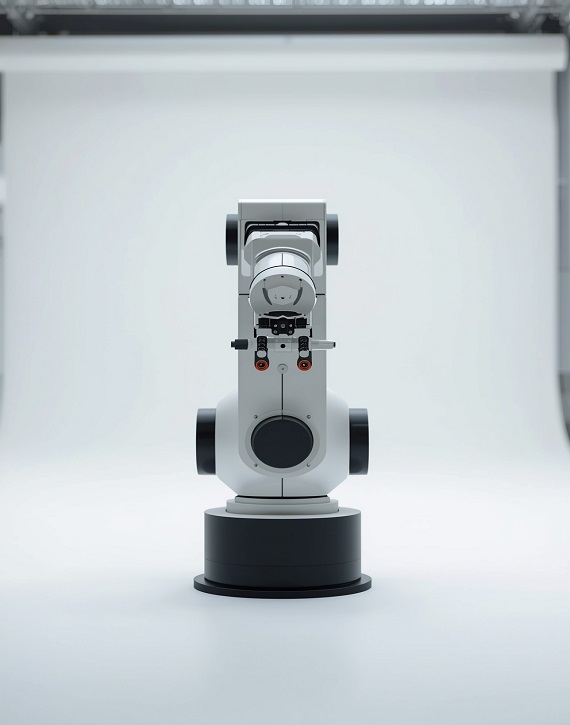
Assembly Overview
Follow these step-by-step instructions to assemble your robotic arm. Take your time and double-check each connection before proceeding to the next step.
The assembly process is divided into distinct sections for easier troubleshooting and testing.
Step 1: Base Assembly
Duration: 30-45 minutes
- Install the base motor mount using M3x12 screws
- Secure NEMA 17 motor (Motor 1 - Base Rotation)
- Install 608ZZ bearings in the rotation platform
- Connect GT2 belt between motor and bearing assembly
- Install limit switch at minimum rotation point
- Test rotation manually before proceeding
Step 2: Shoulder Joint
Duration: 45-60 minutes
- Mount Motor 2 to shoulder joint housing
- Install bearings for smooth rotation
- Attach upper arm connection point
- Connect timing belt and tension properly
- Install shoulder limit switches (min/max position)
- Attach shoulder assembly to base platform
Step 3: Elbow & Forearm
Duration: 45 minutes
- Assemble elbow joint with Motor 3
- Connect upper arm to elbow joint
- Install forearm section with proper alignment
- Add limit switches for elbow position
- Test range of motion
Step 4: Wrist & Gripper
Duration: 60 minutes
- Install Motors 4, 5, and 6 for wrist articulation
- Assemble gripper mechanism with servo control
- Connect all wrist timing belts
- Install gripper limit switches
- Test full wrist range of motion
- Verify gripper open/close operation
Electronics Setup
Controller Wiring
Connect all electronic components to the Arduino Mega with RAMPS shield following this wiring diagram:

Motor Connections
Motor 1 (Base):     → X-Axis Driver

Motor 2 (Shoulder): → Y-Axis Driver

Motor 3 (Elbow):    → Z-Axis Driver

Motor 4 (Wrist 1):  → E0 Driver

Motor 5 (Wrist 2):  → E1 Driver

Motor 6 (Gripper):  → Servo Pin D11


Power Input: 12V 15A → RAMPS Power Terminals

USB: Arduino Mega → Computer/Raspberry Pi
Limit Switch Wiring
Connect limit switches to their respective axis pins:
- X-Min: Base minimum rotation
- X-Max: Base maximum rotation
- Y-Min: Shoulder minimum angle
- Y-Max: Shoulder maximum angle
- Z-Min: Elbow minimum angle
- Z-Max: Elbow maximum angle
Driver Configuration
Setting Motor Current (A4988):
- Measure Vref on driver potentiometer with multimeter
- Calculate: Desired Current = Vref × 2.5
- For 1.7A motors: Set Vref to 0.68V
- Adjust potentiometer carefully with small screwdriver
- Repeat for all 6 drivers
Software Installation
Prerequisites
Before installing the Ervy software, ensure you have:
- Arduino IDE 1.8.19 or newer
- Python 3.8 or newer
- Node.js 16.x or newer (for web interface)
- Git for version control

Firmware Installation
# Clone the repository

git clone https://github.com/ErvyRobotic/firmware.git

cd firmware


# Open in Arduino IDE

# File → Open → ervy_firmware.ino


# Select board: Arduino Mega 2560

# Select port: (your USB port)


# Upload firmware

# Sketch → Upload
Control Software Setup
# Install control software

git clone https://github.com/ErvyRobotic/control-software.git

cd control-software


# Install dependencies

pip install -r requirements.txt


# Configure settings

cp config.example.yaml config.yaml

nano config.yaml


# Run control software

python3 main.py
Web Interface Installation
# Install web dashboard

cd web-interface

npm install


# Start development server

npm run dev


# Build for production

npm run build


# Access at http://localhost:3000
Calibration
Proper calibration ensures accurate positioning and smooth operation of your robotic arm.
Initial Homing
- Power on the system
- Open control software terminal
- Run command:
G28(home all axes) - Arm will move to limit switches sequentially
- Verify each axis homes correctly
- Note: This establishes zero positions
Steps Per Unit Calibration
# For each axis, measure actual vs commanded movement


1. Command 100mm movement

2. Measure actual movement

3. Calculate: New Steps = (Old Steps × Commanded) / Actual

4. Update in firmware configuration

5. Re-upload and test


Example:

Commanded: 100mm

Actual: 95mm

Old Steps: 80 steps/mm

New Steps: (80 × 100) / 95 = 84.21 steps/mm
Auto-Calibration Wizard
Use the built-in calibration wizard for easier setup:
python3 calibrate.py --interactive


# Follow on-screen prompts

# Wizard will guide through:

# - Limit switch verification

# - Motor direction check

# - Step calibration

# - Range of motion testing

# - Speed optimization
Network Connection
Connect your robotic arm to the Ervy network to enable remote access and begin earning.
Network Requirements
- Stable internet connection (minimum 5 Mbps upload)
- Static IP or DDNS service (recommended)
- Port forwarding for external access (ports 8080, 8443)
- Solana wallet with SOL for transactions
Connecting to Ervy Network
# Install network client

npm install -g @ervy/network-client


# Initialize connection

ervy-client init


# Enter your details:

# - Wallet address

# - Device name

# - Location (optional)

# - Hourly rate


# Start network daemon

ervy-client start --daemon


# Check status

ervy-client status
Network Dashboard
Monitor your node's performance through the web dashboard at http://your-ip:8080/dashboard
- Real-time connection status
- Active sessions and requests
- Earnings and statistics
- Health monitoring
- Performance metrics
RaaS Node Setup
Transform your robotic arm into an earning node on the Ervy network.
Node Registration
- Create or import Solana wallet
- Acquire ERVY tokens for staking
- Register node on Ervy platform
- Stake minimum required tokens (50 ERVY)
- Set your pricing and availability
- Activate node for incoming requests
Setting Your Rates
Configure your pricing structure based on:
- Per-Minute Rate: Base rate for robot usage time
- Setup Fee: One-time fee per session
- Complexity Multiplier: Charge more for complex tasks
- Peak Hours: Optional surge pricing during high demand
# Example pricing configuration

{

  "baseRate": 0.05,        // 0.05 ERVY per minute

  "setupFee": 0.10,        // 0.10 ERVY per session

  "complexityMultiplier": 1.5,

  "peakHours": {

    "enabled": true,

    "multiplier": 1.3,

    "hours": "09:00-17:00"

  }

}
Token Staking
Staking ERVY tokens is required to operate a node on the network. Stakes ensure quality service and network security.
Staking Requirements
| Node Tier | Minimum Stake | Benefits |
|---|---|---|
| Basic | 50 ERVY | Standard visibility, basic support |
| Professional | 200 ERVY | Priority listing, reduced fees (8%) |
| Enterprise | 500 ERVY | Featured placement, lowest fees (5%), dedicated support |
How to Stake
# Using web dashboard

1. Navigate to "Staking" section

2. Connect your Solana wallet

3. Enter stake amount

4. Confirm transaction

5. Wait for blockchain confirmation


# Using CLI

ervy-client stake --amount 50
Earning & Rewards
Start generating passive income by providing robotic arm access to users worldwide.
Revenue Streams
Usage Fees
Earn tokens every time someone uses your robot. Payments are automatic via smart contracts.
Uptime Rewards
Bonus rewards for maintaining high availability (95%+ uptime) on the network.
Staking Yields
Earn additional APY on your staked tokens (currently 8-12% annually).
Payment Distribution
Understand how earnings are calculated and distributed:
Session Fee Structure:


User Payment:           100 ERVY

- Network Fee (10%):    -10 ERVY

- Your Earnings:         90 ERVY


Automatically distributed to your wallet

after each completed session.
Maximizing Earnings
- Maintain High Uptime: Keep your node online 24/7 for maximum exposure
- Optimize Response Time: Fast response increases your ranking
- Build Reputation: Positive ratings attract more users
- Competitive Pricing: Balance profit with market demand
- Upgrade Stake Tier: Higher tiers get better visibility
Withdrawal
# Earnings are automatically sent to your wallet

# No minimum withdrawal required

# Instant settlement after session completion


# View balance

ervy-client balance


# View transaction history

ervy-client history --limit 50
API Reference
Integrate Ervy functionality into your custom applications using our REST API.
Authentication
POST /api/v1/auth

Content-Type: application/json


{

  "walletAddress": "your_solana_address",

  "signature": "signed_message"

}


Response:

{

  "token": "jwt_token",

  "expiresIn": 3600

}
Control Endpoints
Move to Position
POST /api/v1/move

Authorization: Bearer {token}


{

  "x": 150,

  "y": 200,

  "z": 100,

  "speed": 50

}


Response: 200 OK
Get Current Position
GET /api/v1/position

Authorization: Bearer {token}


Response:

{

  "x": 150.0,

  "y": 200.0,

  "z": 100.0,

  "timestamp": 1234567890

}
Control Gripper
POST /api/v1/gripper

Authorization: Bearer {token}


{

  "action": "close",  // "open" or "close"

  "force": 50         // 0-100

}
Network Endpoints
Get Node Status
GET /api/v1/node/status


Response:

{

  "online": true,

  "uptime": 99.8,

  "sessionsToday": 45,

  "earningsToday": 23.5,

  "rating": 4.8

}
Troubleshooting
Common issues and their solutions:
Motor Not Moving
Possible Causes:
- Check power supply voltage and amperage
- Verify driver current setting (Vref)
- Ensure motor connections are secure
- Check if limit switch is triggered
- Verify firmware uploaded correctly
Positioning Inaccuracy
Solutions:
- Re-run calibration wizard
- Check for loose belts (should have light tension)
- Verify steps-per-unit configuration
- Ensure no mechanical binding
- Lubricate bearings if needed
Network Connection Issues
Checklist:
- Verify internet connectivity
- Check firewall settings and port forwarding
- Ensure wallet has sufficient SOL for gas
- Restart network daemon
- Check node status on dashboard
Overheating Drivers
Prevention:
- Verify driver current not set too high
- Add heatsinks to all stepper drivers
- Improve airflow around electronics
- Consider adding cooling fan
- Reduce motor current if possible
Frequently Asked Questions
How much can I earn with a RaaS node?
Earnings vary based on usage, pricing, and network demand. Active nodes typically earn $50-$200/month, with high-demand periods earning significantly more. Your location, uptime, and reputation also factor into earning potential.
Do I need programming experience?
Basic understanding is helpful but not required. Our setup wizard automates most configuration. For custom modifications, Python and Arduino knowledge is beneficial.
Can I modify the design?
Absolutely! The entire project is open-source under MIT license. Customize, improve, and share your modifications with the community.
What's the power consumption?
Idle: ~20W, Active operation: 80-150W depending on load. Estimated monthly cost: $15-30 at average electricity rates.
How do I handle maintenance?
Monthly: Check belt tension, clean components, verify calibration. Quarterly: Lubricate bearings, inspect wiring. Annual: Replace worn belts or bearings as needed.
Is my robot secure?
Yes. All communications are encrypted, authentication is required, and you maintain full control. You can set usage limits, blacklist users, and pause availability anytime.
Can I run multiple nodes?
Yes! Many operators run multiple arms to increase earnings. Each requires its own stake, but management tools allow controlling multiple nodes from one dashboard.
What if something breaks?
Most parts are 3D printed and can be reprinted. Electronic components are standard and easily replaceable. We maintain a marketplace where community members sell spare parts.
Need More Help?
Our community and support team are here to assist you
